
If YouTube shows Video not available, Audioship may still have uploaded successfully. The message usually depends on the video's YouTube-side status.
Check these first
- If the video is Private, make sure you are signed into a YouTube account allowed to view it.
- If the video is Scheduled, it remains private until the scheduled publish time.
- If YouTube is still processing the video, wait and refresh the YouTube page.
- If the video was removed, age-restricted, copyright-restricted, or blocked by YouTube, manage the issue in YouTube Studio.
- If you uploaded to the wrong channel, open YouTube Studio for the channel shown in Audioship upload history.
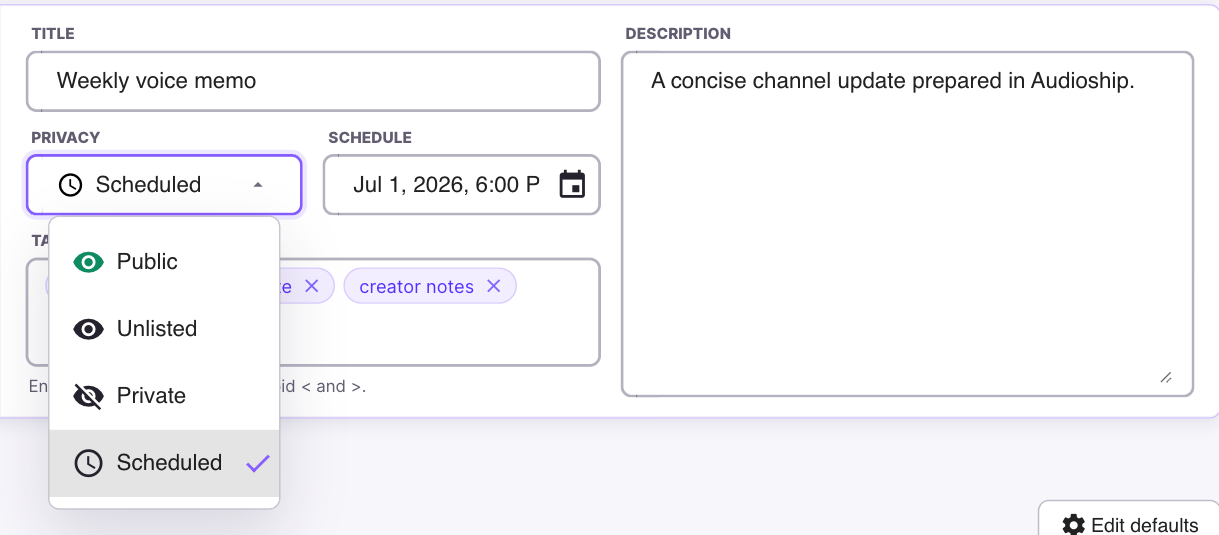
You can change privacy and other YouTube-side settings in YouTube Studio after upload.