
Audioship can publish only to YouTube channels you explicitly connect. A Google account without a YouTube channel cannot receive uploads until you create a channel in YouTube.
Add a channel
- Open Upload.
- If you are signed out, select Sign in and complete Google sign-in first.
- Select Connect YouTube channel beside Pick YouTube channel for upload.
- In the Google window, choose the account that owns the YouTube channel you want to publish to.
- Keep the YouTube upload permission selected and allow access.
- Return to Audioship, open Pick YouTube channel for upload, and select the channel.

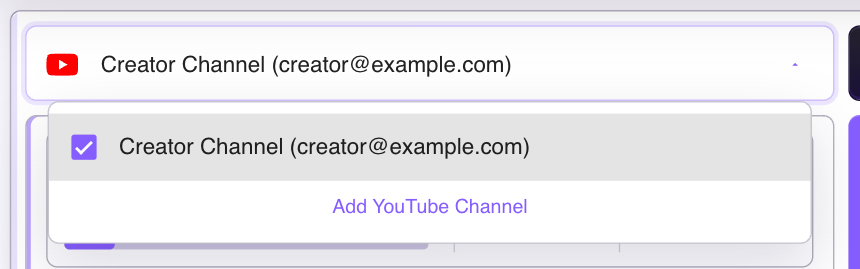
If the channel does not appear
- Use YouTube's Create a YouTube channel guide, then return to Audioship and use Recheck if a YouTube status panel is shown.
- If Google access was removed or expired, reconnect the account from Audioship.
- If you manage multiple channels, confirm you selected the Google account or Brand Account that owns the destination channel.
Audioship never needs your Google password. You sign in on Google's own pages and can revoke Audioship access later from your Google Account.