
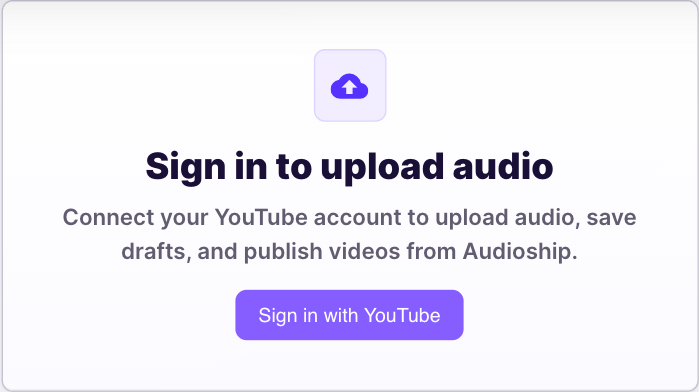
Audioship uses your Google account for sign-in and for the YouTube channel connection that receives uploads. You can browse pricing and support while signed out, but uploading requires a signed-in account with at least one connected YouTube channel.
Start from the upload page
- Open Upload.
- If you are signed out, select Sign in in the Audioship navigation.
- Choose the Google account you want to use for Audioship.
- After Google returns you to Audioship, select Connect YouTube channel if the channel picker says no channel is connected.
- Choose the Google account that owns the destination channel, keep the YouTube upload permission selected, and allow access.
- After Google returns you to Audioship again, wait for the upload workspace to load.
Confirm your account is ready
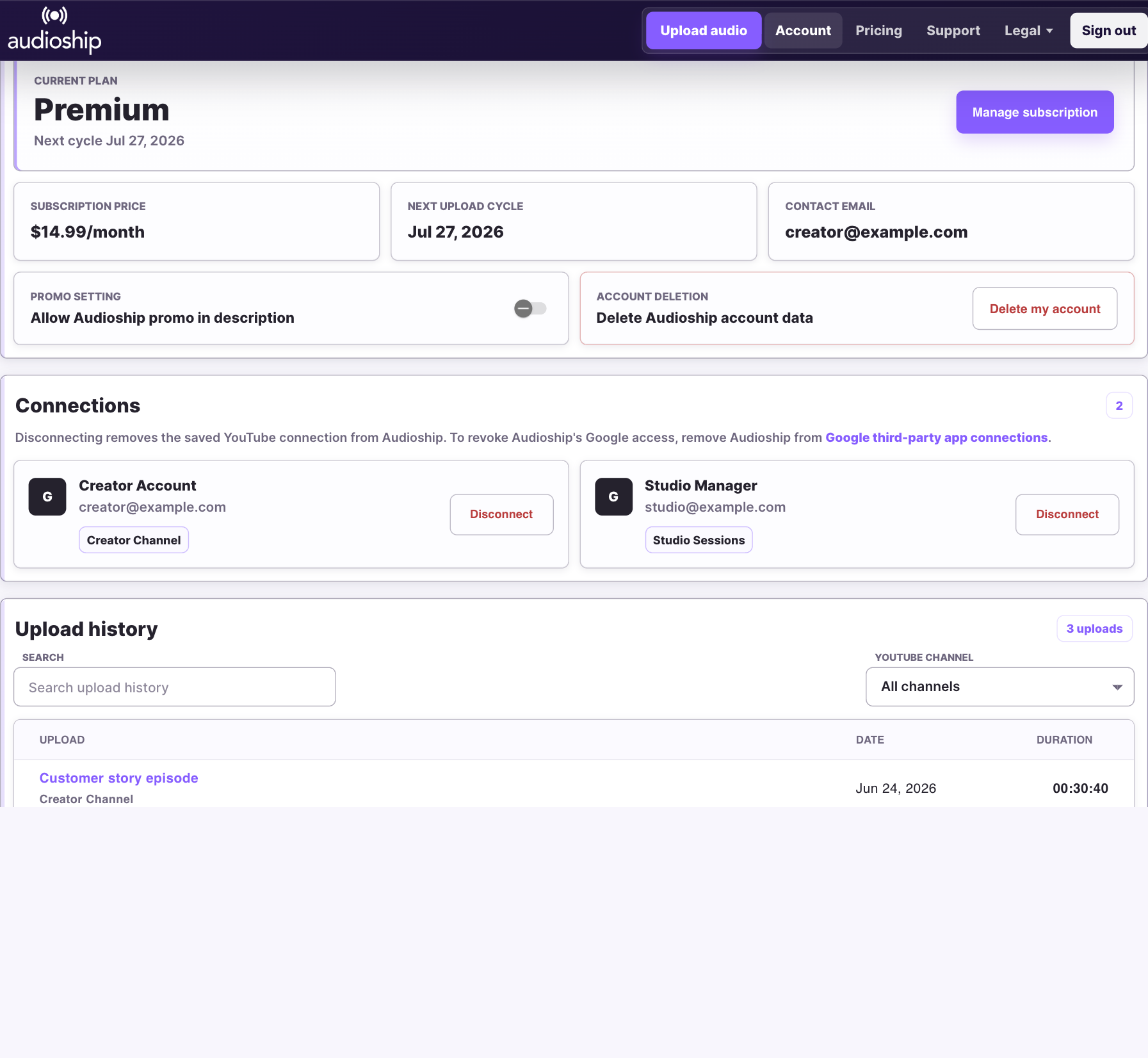
- Open Account to see your current plan, next upload cycle, contact email, YouTube connections, and upload history.
- Open Pricing if your current plan does not include enough monthly uploads or maximum video length for your work.
- If no YouTube connection is saved, add one from the channel picker on the upload page.
Before your first upload
- Make sure the destination Google account has a YouTube channel. Google accounts and YouTube channels are related, but a channel may still need to be created before it can receive uploads.
- If you plan to publish audio longer than 15 minutes, verify the YouTube channel with YouTube first.
- Keep your billing and contact email current so subscription and support messages reach the right inbox.