
Audioship can import podcast episodes from an RSS feed so you do not need to download each episode manually.
Audioship or YouTube's native RSS importer?
Choose Audioship when you want to work on selected episodes as editable drafts, reuse backgrounds and defaults, or combine RSS imports with audio files. Audioship imports the episodes you select; it does not automatically publish future episodes from the feed.
YouTube's native RSS delivery can automatically upload future episodes and creates videos using your show's artwork. It is available in selected countries and regions. During setup, you can choose existing episodes, episodes since a date, or future episodes. See YouTube's RSS delivery overview and RSS setup instructions.
For an ongoing automatic feed mirror, consider YouTube's importer. For a selected back catalog with individual edits and release times, follow the Audioship steps below. Check what is already on your channel before importing to avoid duplicate videos.
Import the RSS feed
- Open Upload.
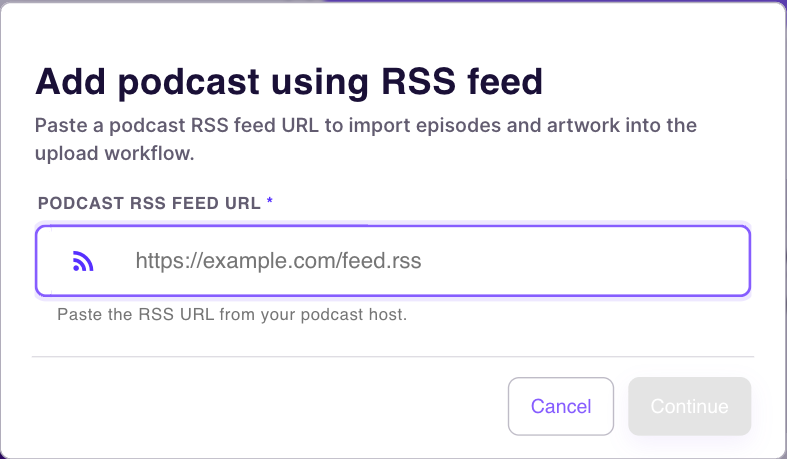
- Select Add podcast.
- Paste the podcast RSS feed URL from your podcast host.
- Select Continue.
Select episodes
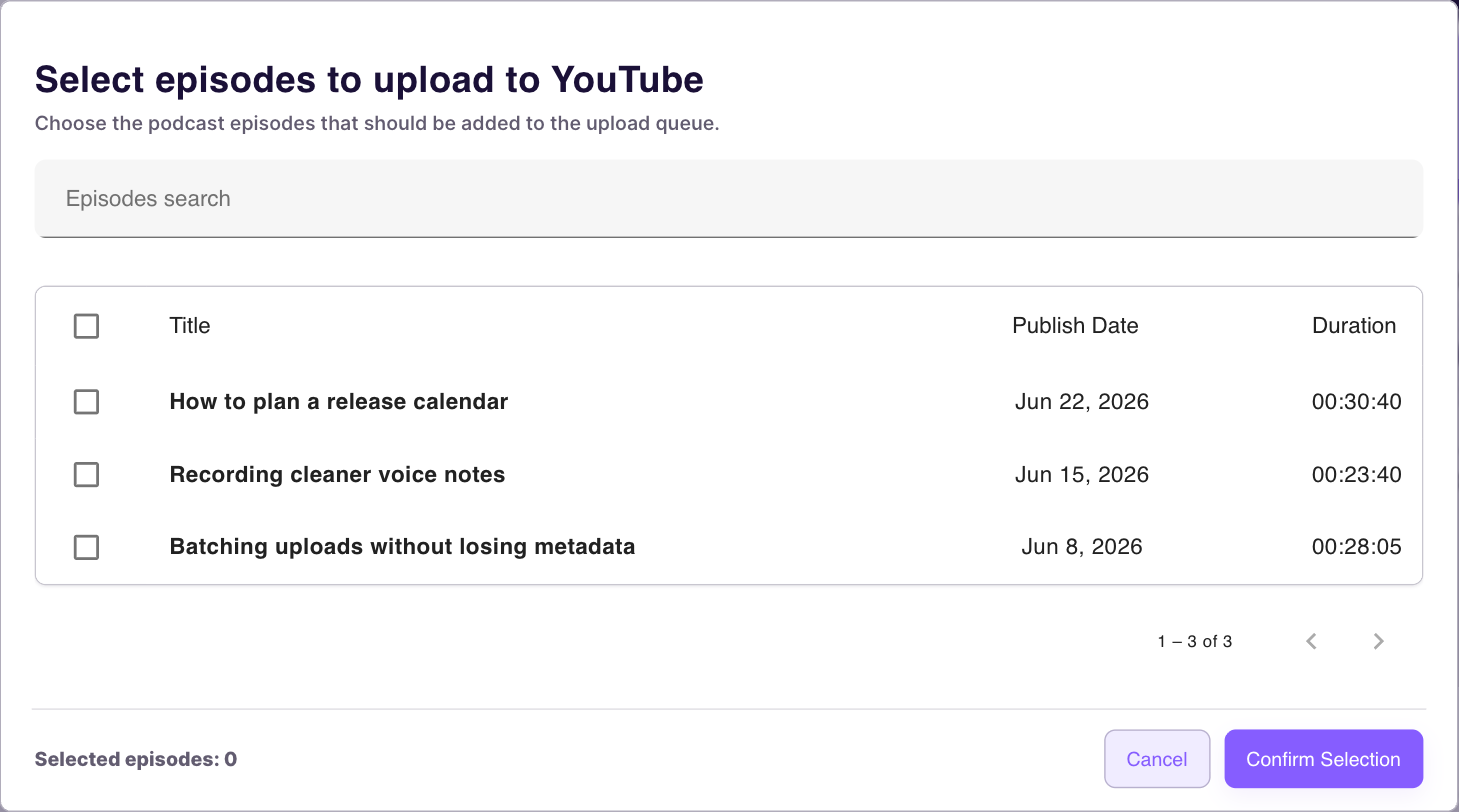
- Wait for Audioship to load episodes from the RSS feed.
- Use search, sorting, and checkboxes to choose the episodes you want.
- Select Confirm Selection.
Edit podcast drafts
- Use Edit defaults to adjust default privacy, description, tags, and background settings for the group.
- Use Select episodes to add or remove episodes from the podcast group.
- Use Edit picture or Edit YouTube details to update selected episodes in bulk.
- Open an individual draft card to edit that episode's title, description, tags, privacy, schedule, or background.
- For podcast artwork, the background picker can use the RSS episode artwork when available.

Schedule episodes and plan your back catalog
Review each selected episode's title, description, and artwork before publishing. To release an episode later, choose Scheduled in its YouTube details and set a future date and time. Check the displayed time zone and allow time for conversion and YouTube processing.
Start with a small batch so you can check the published result. Your Audioship quota and YouTube's daily cap are separate; see YouTube upload limits before publishing a large archive.
Publish the episodes
- Select the destination YouTube channel or channels.
- Confirm your plan has enough uploads left and each episode is within your maximum video length.
- Select Publish to YouTube.
- Watch the result cards for download, conversion, YouTube upload, success, or error states.
Large podcast batches can take a while. Audioship queues the work, but you should keep the tab open if you want to watch live progress. Finished uploads also appear later in Account upload history.
What happens when a new episode appears?
Return to Audioship and choose the new episode from your feed when you are ready to prepare it. Review its draft and publish it yourself. Changing your RSS feed does not automatically replace a video already published through Audioship.