
To bulk upload audio to YouTube, select several audio files in Audioship, prepare their backgrounds and YouTube details, and publish the reviewed batch. Each separate draft becomes its own video for each selected destination channel.
1. Plan a manageable batch
Collect the MP3, WAV, M4A, or other supported files you want to publish. Use clear filenames so you can recognize them in the draft list. If the audio is in Google Drive, use the Drive import workflow. For podcast episodes, importing the RSS feed can save downloading them individually.
Check your remaining quota and maximum video duration before selecting a large collection. For example, four separate drafts sent to two channels require eight video uploads. Start with a small batch and check its results before working through the rest of an archive. YouTube also has its own daily upload limits.
2. Add files and choose separate videos or one mix
- Open Upload audio and select multiple files, or drag them into the workspace.
- Wait until their audio uploads or imports finish. Keep the tab open while local files are still uploading.
- Keep one draft per file when you need separate video links, titles, or release dates.
- Use Join audio only if you want one continuous album, mix, or recording. Review the track order and combined duration before joining.
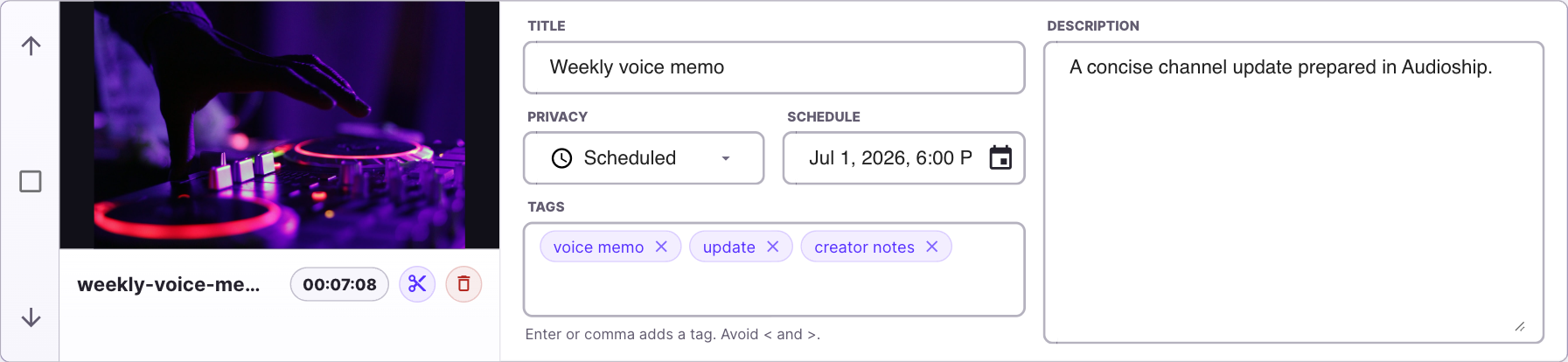
3. Reuse common settings and check individual details
Use the group's Edit defaults controls for shared settings. Review which drafts and fields will change before saving. Common artwork and description text can make a series consistent, while each video's title, credits, and schedule should match its recording.
For separate release dates, open each draft's YouTube details, choose Scheduled, and set a future date and time. Check the displayed time zone. Allow time for conversion and YouTube processing before the intended release.
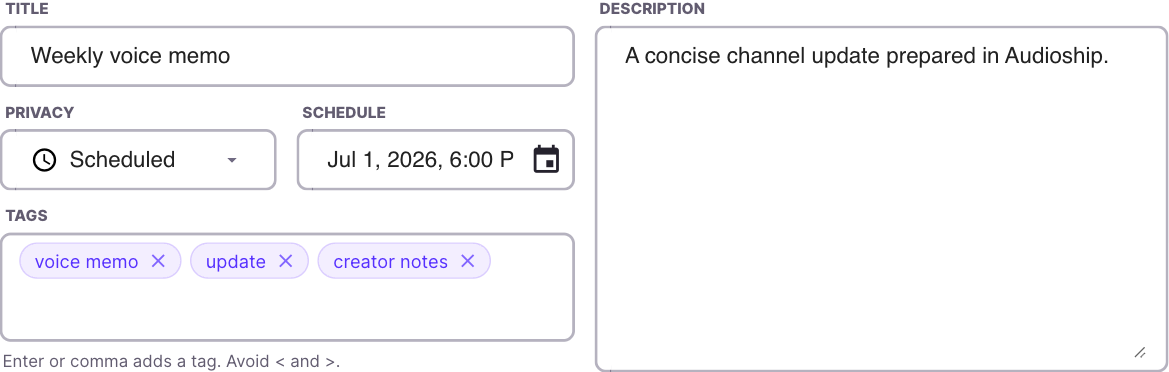
4. Review destinations and publish
Select the intended YouTube channel or channels. Check every draft's artwork, title, privacy, and duration. Select Publish to YouTube, review the final confirmation, and confirm only the drafts and destinations you intend to publish.
5. Track results and retry only what failed
Follow progress in Upload jobs. Expand a job to inspect its destinations and errors. Finished work remains in Account upload history. Check for successful video links before retrying so you do not publish a second copy of a recording that already reached YouTube.
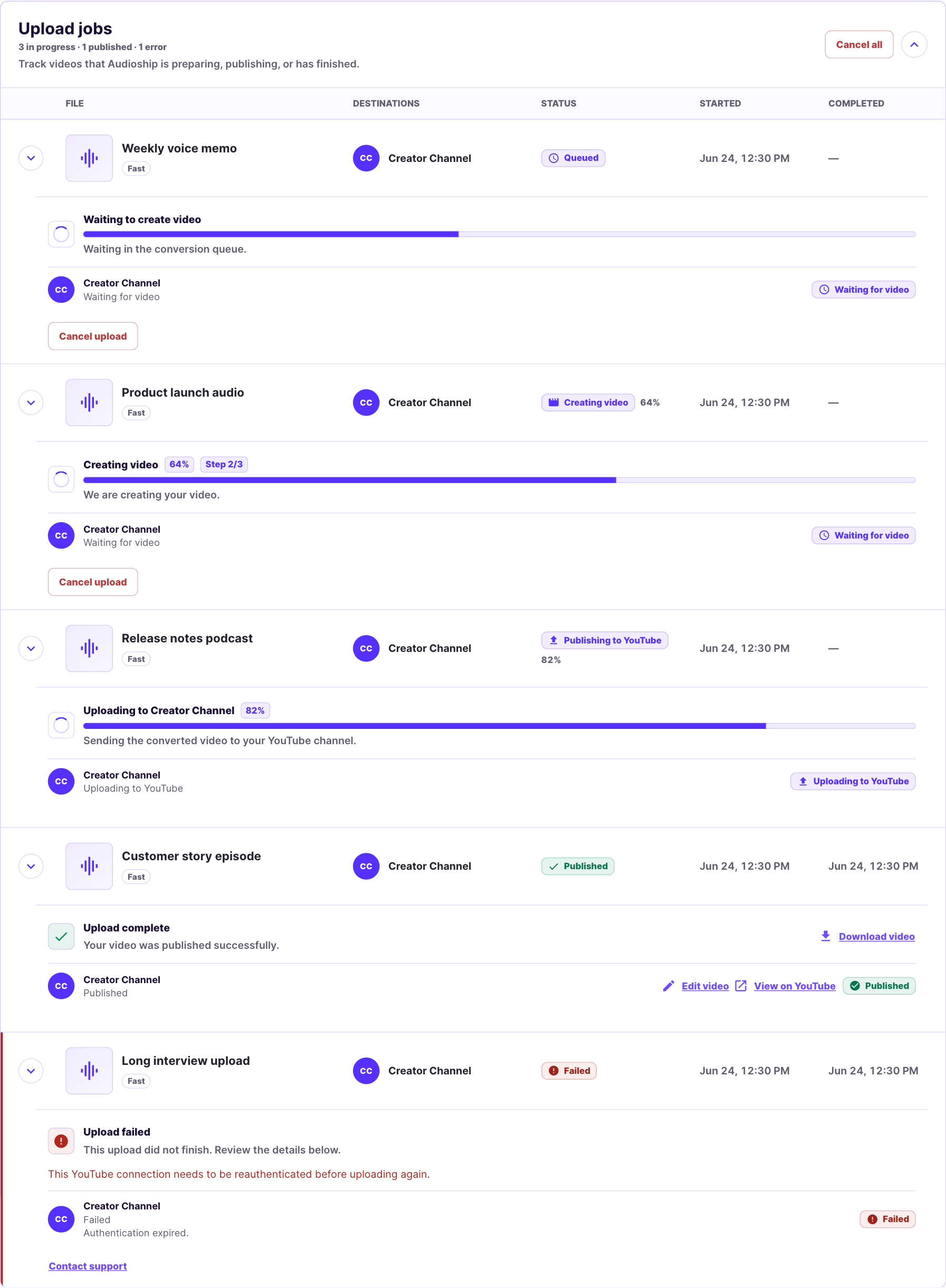
If a channel reaches YouTube's daily cap, wait before retrying its failed uploads. Buying a larger Audioship plan does not remove a YouTube restriction. Follow the failure guide for the exact message shown.