
To publish a song on your YouTube channel, add your audio and cover artwork to Audioship, choose the video details, and publish. Audioship creates the video and sends it to your selected channel. Start with an MP3, WAV, FLAC, M4A, or another supported audio file.
YouTube requires a video for channel uploads; its upload documentation explains why audio needs an image or video track. This guide covers publishing for an audience. For personal listening, see the separate YouTube Music library upload instructions.
Prepare your song and cover artwork
Use audio and images that you have the rights to publish. Export the finished song from your recording or editing app and choose artwork for the release. A 16:9 image such as 1920 × 1080 works well for a standard YouTube video. Keep important text away from the edges and check that the artist and song name are readable at a small size.
Free includes 3 videos per month, up to 30 minutes each, with an Audioship watermark. Paid plans remove the watermark and raise the upload and duration limits. Check current plans before preparing a large release.
Publish one song with its own artwork
- Open Upload audio and choose your song. You can also use Import from Drive for a file in Google Drive.
- Choose the destination YouTube channel. If it is not connected yet, use the channel picker to connect it.
- On the song's draft, select Edit picture, choose or upload cover artwork, and select Use background.
- Set a title with your artist name and song title. Add credits and useful release links to the description.
- Review privacy and select Publish to YouTube. Check the final review dialog before confirming Publish.
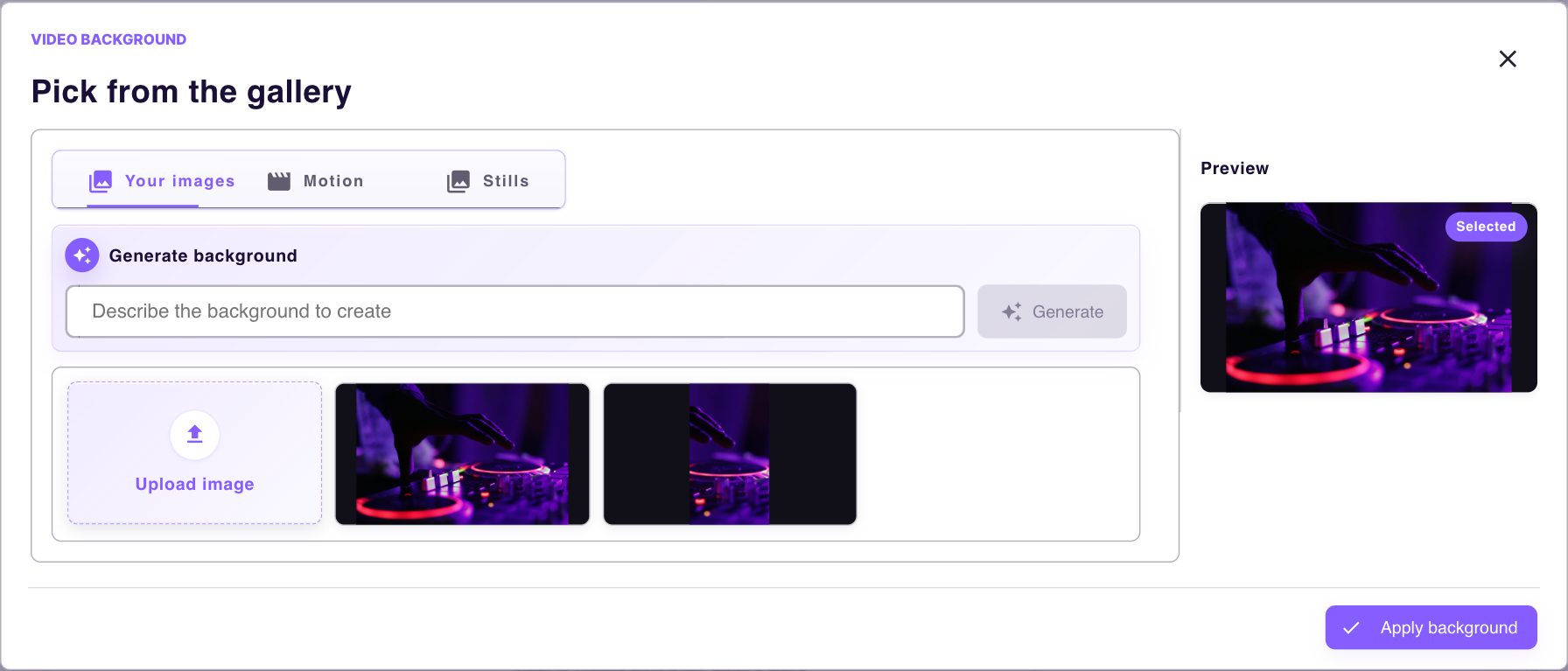
Wait for the upload job to succeed, then open its YouTube link and check the audio, artwork, title, and visibility. YouTube may still be processing playback after accepting the upload. The complete audio upload guide covers each workspace control.
Release several tracks as separate videos
Select the audio files together to create one draft per song. Keep them separate when each track needs its own YouTube URL, title, artwork, or release time. Use Edit defaults for shared settings, then review each draft for song-specific details. Check which settings the defaults dialog will apply before saving.
For example, suppose your three-song EP contains Dawn, Daylight, and After Dark. Upload the three files, use the same EP artwork, and give each draft its own title. Add artist credits to each description and choose a release time for each song. Publishing all three to one channel uses three video uploads; publishing them to another channel also uses uploads.
Make one album video or a continuous mix
Use Join audio when you want several tracks in one video. Review the track order before joining and choose which draft supplies the settings. Check the combined draft's artwork and metadata. The finished video has one title, description, and release time, and its total duration must fit your plan.
For the EP example, arrange Dawn, Daylight, and After Dark in listening order and join them. Name the video for the whole EP and include the track list in its description. If you add timestamps, calculate them from the final audio, including any edits. Keep separate drafts if listeners need individual video links.
Schedule a release and reuse your settings
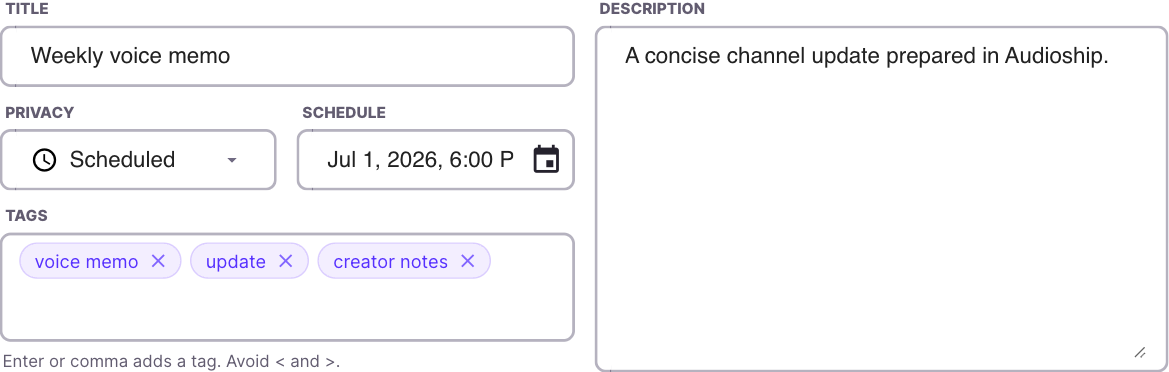
In a draft's YouTube details, choose Scheduled and set a future date and time. Check the displayed time zone and final review before publishing. Allow time for conversion and YouTube processing before the intended release. For recurring uploads, reuse shared artwork and defaults while updating the song title, credits, and schedule for each release.
Check limits before uploading a catalog
Your Audioship monthly quota and YouTube's daily upload limit are separate. A larger Audioship plan does not remove a YouTube channel restriction. If YouTube rejects a batch, read the job's error and follow the upload troubleshooting guide before retrying.
Ready to prepare a release? Add your music, choose your artwork, and review every destination before publishing.