
Audioship can import audio from Google Drive, turn it into a video with your chosen background, and publish it to YouTube. You do not need to download each file to your computer first. Your Drive account and your destination YouTube account can be different.
1. Connect the account that holds your audio
- Open Import from Drive.
- If you are new to Audioship, select Continue with Google Drive to create or sign in to your account and connect Drive. Connecting YouTube is a separate step.
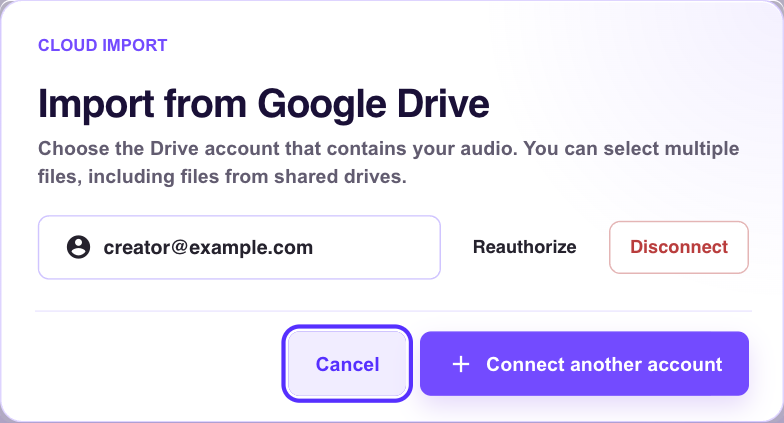
- If you already use Audioship, choose a connected Drive account or select Connect Google Drive. Use Connect another account if the files belong to a different account.
- Complete Google's permission screen, then select the connected account to browse its files.
2. Choose files and wait for the import
Use Google Picker to select one or more audio files. Shared-drive files are supported when the selected account has access. Audioship creates drafts and imports the selected audio on its servers; those imports can continue if you close the tab.
Check the supported formats. Free supports files up to 500 MB; paid plans support files up to 10 GB. A large Drive file still needs to fit Audioship's file and video-duration limits. Wait for imports to finish before publishing.
3. Add artwork and connect YouTube
On each draft, use Edit picture to choose a background and edit its YouTube title, description, and privacy. Select the destination YouTube channel; if needed, follow the channel connection guide. Permission to read a Drive file does not give Audioship permission to publish to YouTube.
Select Publish to YouTube, review the confirmation, and follow progress in Upload jobs. The imported audio stays a draft until you publish it. See the bulk upload guide when working with many files.
If a file or account is unavailable
- Wrong account: select the Drive account that can open the file, or connect another account.
- Expired access: use the reconnect action for the selected account, then browse again.
- File missing from the picker: confirm that the account can access the file in Drive and that it is a supported media file.
- Import failed: read the draft's error, check access and file size, and retry the affected file. Keep the source file available until its import finishes.
To remove a saved Drive connection, open its Manage connection controls and choose Disconnect. This is separate from disconnecting a YouTube channel.